3 min read


© IE Online Media Services Pvt Ltd



 Google Collections works across several Google and third-party apps. (Express Photo)
The Google app that comes pre-installed with most Android devices offers a plethora of features, but some of the most useful ones are often buried in the app. Google Collections, a functionality that allows users to add images, places, shows, movies, web pages and more in a single place is one of them.
While some apps like Microsoft Edge offer similar functionality, they are often limited to one app. This is where Google Collections has a clear advantage since it is available on both Android and iOS and works with Google services like YouTube, Chrome, Search and others and even third-party apps.
It is really helpful if you are someone who reads a lot of articles, watches tons of videos and other things want to quickly add a link, image or page to quickly view later.
 Creating a new Collection in the Google app is pretty easy. (Express Photo)
1. To access your existing collections or create a new one, launch the Google app on your device and tap on the ‘Saved’ button that appears on the bottom bar.
2. On the page that appears, tap the ‘+Create’ on the bottom right of the screen and choose the type of collection you want to create.
3. You can create a collection from links or saved items or choose to make a blank one. Once done, give it a name, add a description if you want to and tap the ‘Done’ button.
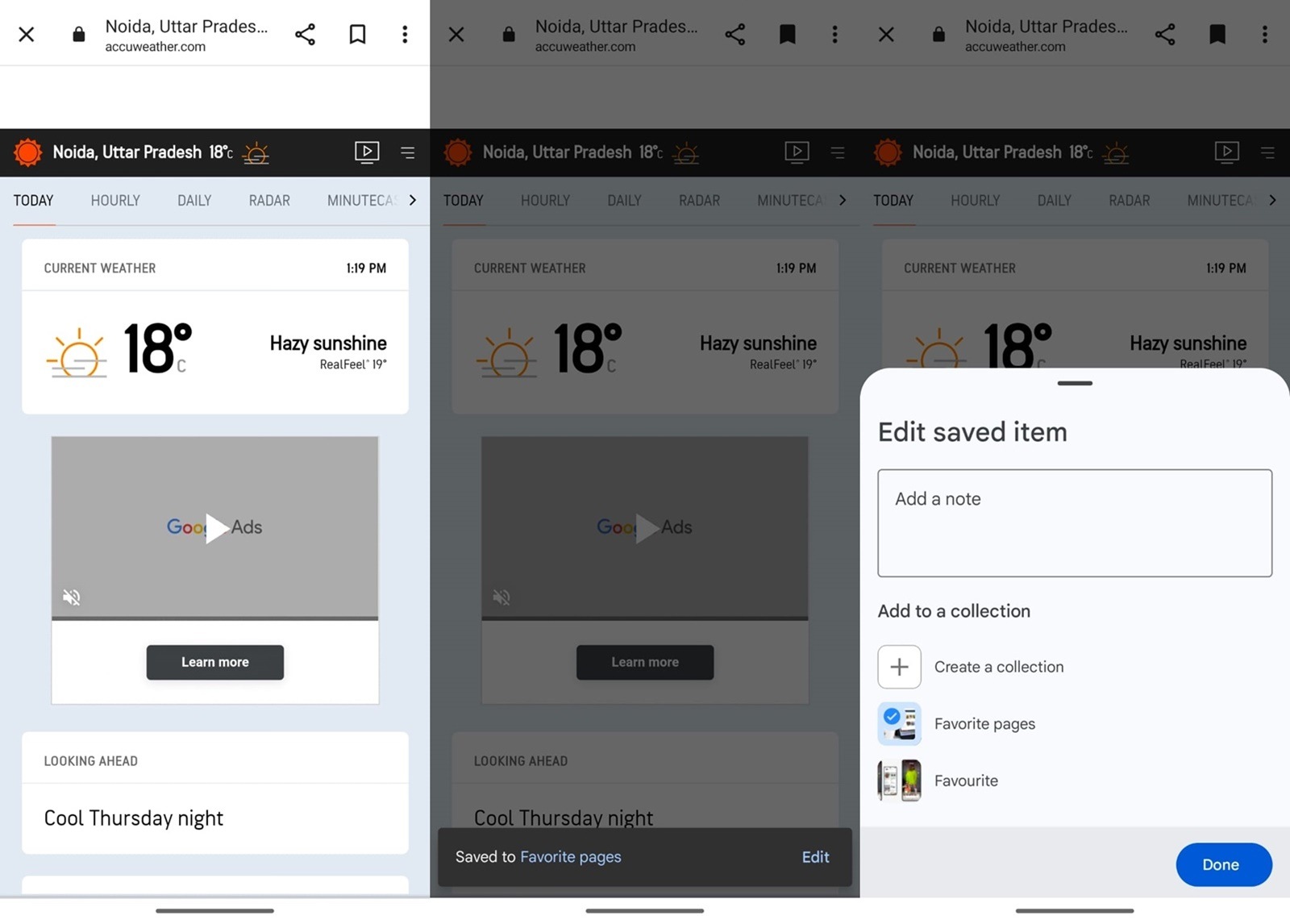 You can add any webpage, image or video to a collection. (Express Photo)
1. To add items to your newly created collection, open the Google app and tap on the ‘Search’ button in the bottom bar.
2. Visit the web page you want to add or enter the link to the webpage you want to add to the collection. You can also add web pages from the Discover feed.
3. When the page loads, tap on the ‘Bookmark icon’ from the upper right corner of the screen and you will get a message on the bottom of the screen saying it is added to your collection.
4. In case you want to add it to another collection, tap on the ‘Edit’ button and you will be able to choose from your existing collections or make a new one.
5. You can also add links, images and other things by heading over to the ‘Saved’ tab in the Google app, tapping on the collection you want to add items to and pressing the ‘+Add’ button.
To delete, edit or reorder collections, head over to the Saved tab in the Google app and you will find the options to do so.
If you want to add something to your collection when using apps like YouTube or your favourite web browser, tap on the three-dot menu, press the ‘Share’ button and tap on the ‘Google’ icon. If it is not available, scroll down from the share sheet and you will see it.