


© IE Online Media Services Pvt Ltd
Tags:


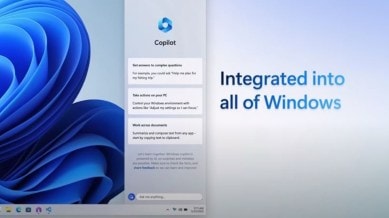
Microsoft has been relentlessly pushing its AI-powered chatbot, Copilot into several apps and services like Office, Edge and even Windows. While many of you may be aware of what Copilot can do, taking a screenshot of anything on the screen and asking Copilot is often a multi-step process that takes some time.
But did you know the AI chatbot has a pretty nifty shortcut that lets you take screenshots and get answers about it in a few clicks? Here’s how you can quickly ask Copilot anything in a just three clicks.
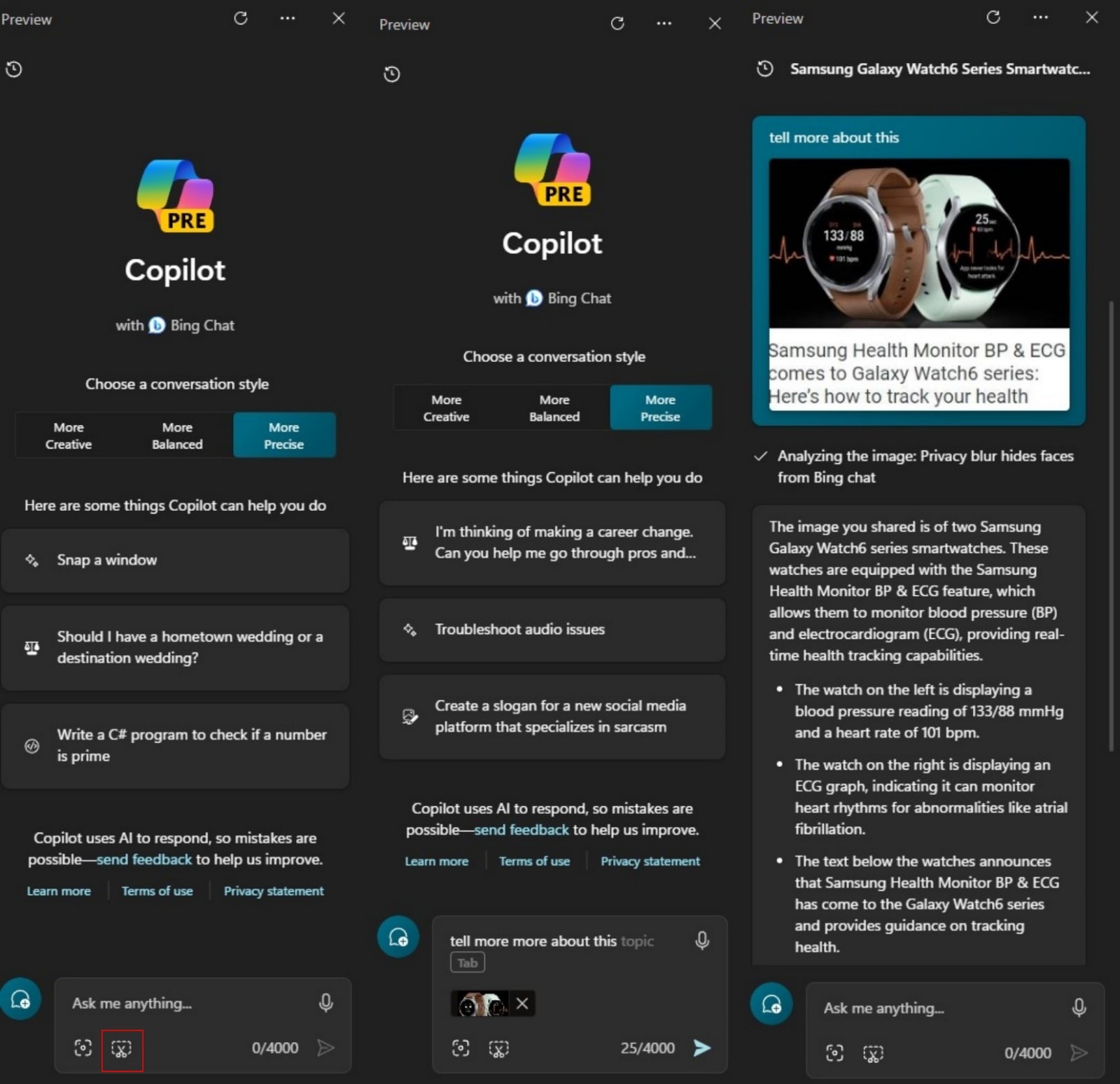
1. To ask Copilot for Windows about anything on your screen, open it by either pressing the Copilot button that appears on the Windows taskbar or use the ‘Windows+C’ shortcut.

2. Once the sidebar pops up, click on the screenshot button placed to the right of the ‘Add an image’ option that appears on the bottom left of the text bar.
3. Now, Copilot will enter into screenshot mode and let you take a photo of anything on the screen.
4. After capturing a part of the screen, tap on the green tick button on the menu bar that appears and the image will automatically be added to your query.
5. Once done, type in your query and hit enter. Wait for a few seconds and Copilot will offer you more information about the screenshot you just took.
While Edge Copilot already has this feature, Microsoft seems to be currently rolling out the new screenshot button the Windows version of the AI chatbot. In case the button is missing on your Windows 11 machine, you might have to wait a few days before it appears on your device.


